
Schoox Login and Support Help
Below you can find information on how to access your Schoox academy and how to get help from our in-house support team (admins and managers only).
To start, which best describes you? I need help to…
Resetting or Recovering Your Login / Password
Did you forget your password? You can easily reset it in 4 steps!
Step 1:
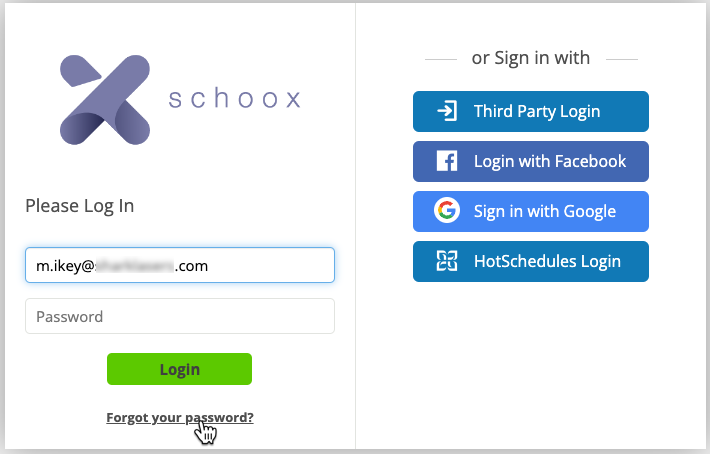
Follow the Forgot your password link, right under the login area of the login page.
Step 2:
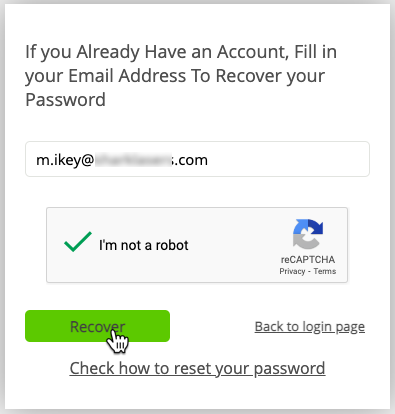
It’s time to add the email address you’ve used to sign up on Schoox. Add your email address and click Recover.
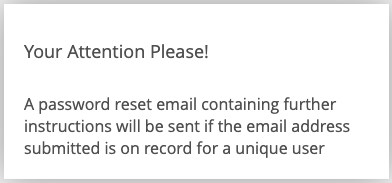
You will then see the following page notifying you that you will soon receive an email with further instructions. Please check your email!
Please note that if you have set up Recovery Questions for your Account you can change your password by answering these questions. Read more: How can I set up my Recovery Questions?
Step 3:
You will receive a confirmation email asking you to confirm that you have asked to change your password. This is necessary to prevent others from trying to change your password by using your email.
The confirmation email looks like this:
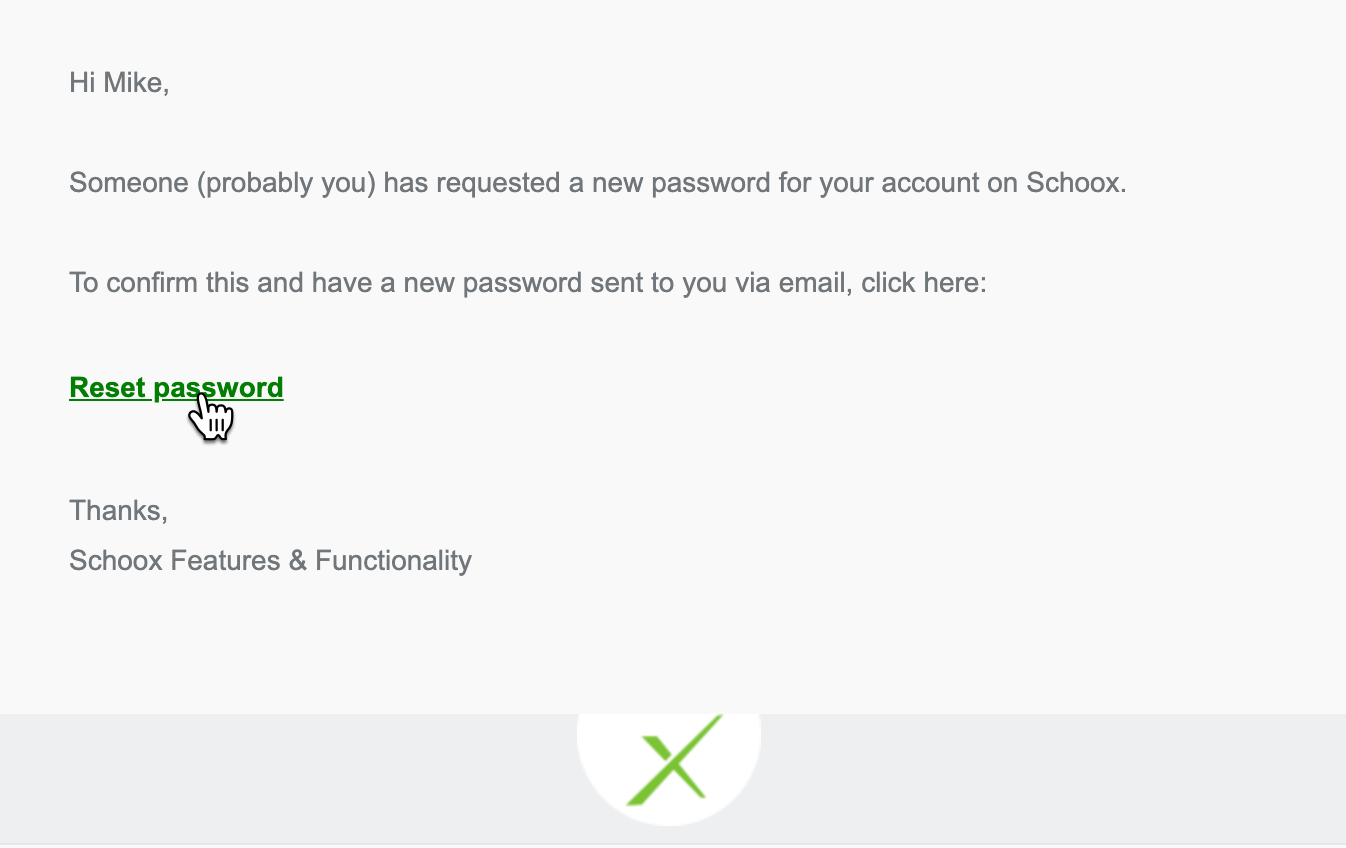
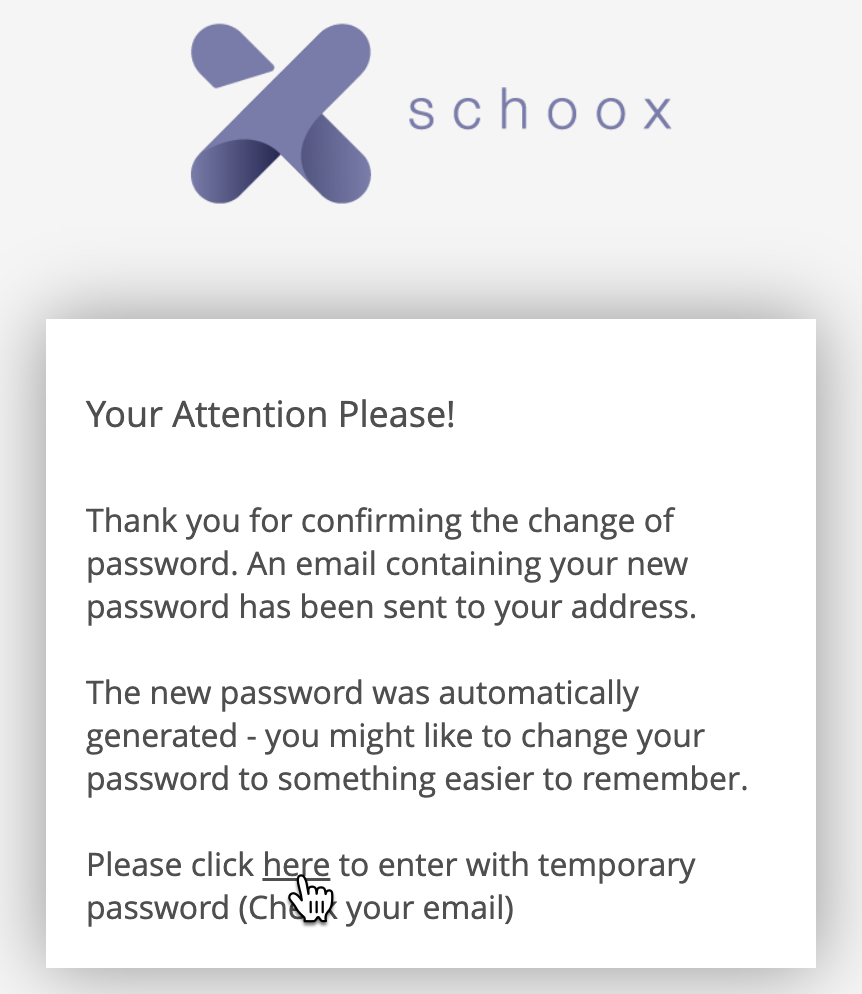
Once you click on the Reset Password button you will be redirected to a page similar to the following one! Read the instructions and click on the relevant link in order to enter with a temporary password.
Step 4:
Once you have confirmed the change of your password (by following the link in the first email) you will get another email that has a temporary password.
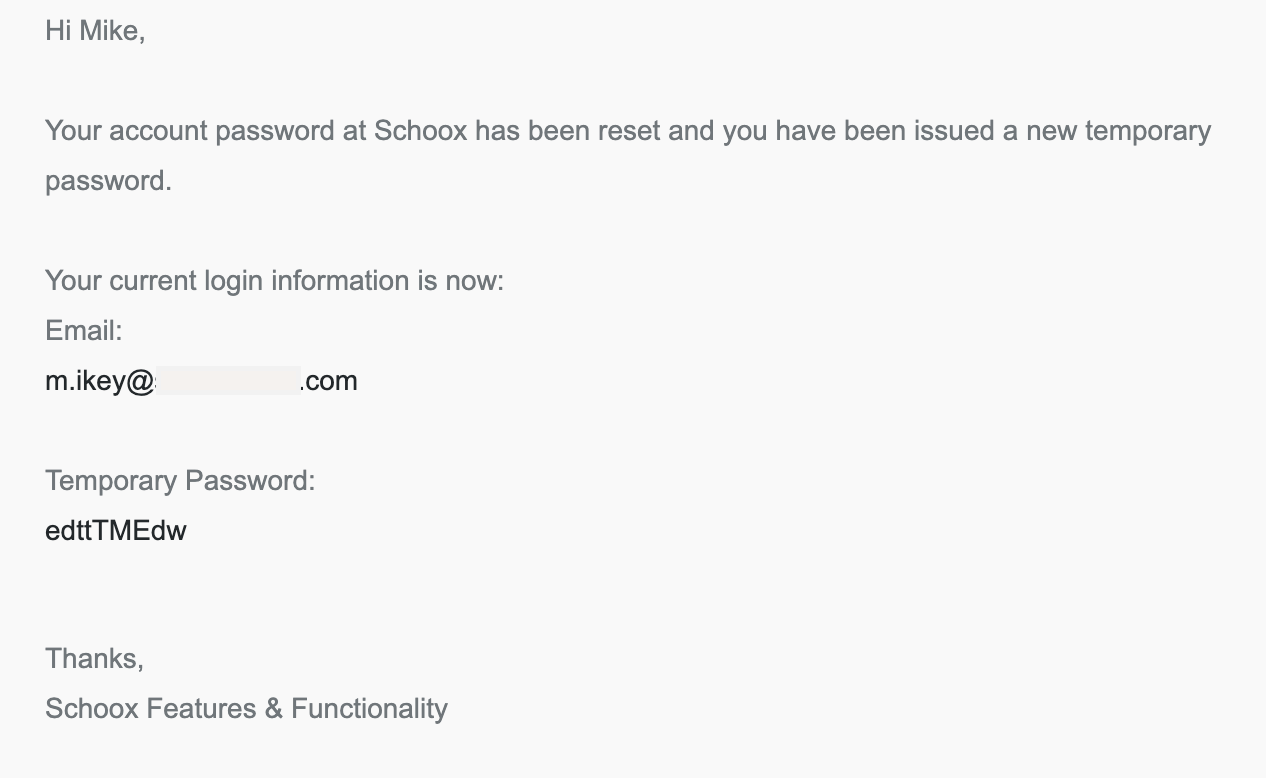
You can now use this temporary password to log in to Schoox.
To set up a permanent password, please, provide your temporary password in the first field again and the desired new password in the next two fields.
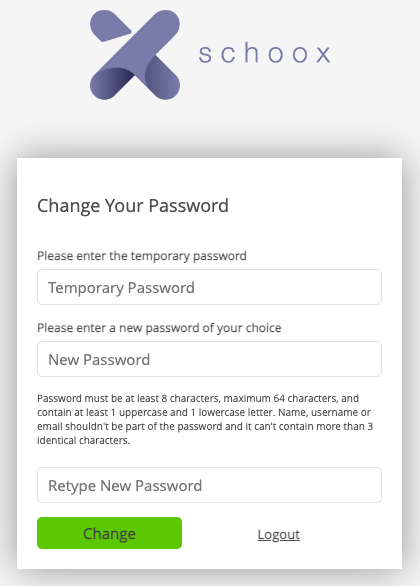
Please note that your new password should meet the following requirements:
- Minimum length: 8 characters
- Maximum length: 64 characters
- At least one uppercase character
- At least one lowercase character
- Not more than three identical characters in a row (e.g., aaa or 111)
- Name as part of the password is not permitted
- Login as password is not permitted
- Password cannot match academy names
If this didn’t fix your issue or if you need help with something else, here are the next best steps to take:
- Your manager or team lead will likely be able to help you out
- The company’s HR or learning and development team can likely assist
- If all else fails, there’s likely a help or contact us method on your organization’s website
Submitting a Support Ticket
If you’re an administrator that needs help with a question or issue, the best way to get ahold of our support team is to submit a support ticket through your academy. Just click the “Help” icon in the bottom right corner and then “Contact Support.”
When submitting a support ticket, our speediest results happen when we receive:
- Notes that are as detailed as possible
- Screenshots and videos of what you’re seeing and experiencing
- Tickets each focusing on one issue, if you need to submit multiple then that’s no problem at all!
- If you are an admin click here to login and submit a support ticket
- If you are a non-admin user, please reach out to your manager for assistance.
Something Else Going On?
No worries! We find that in these cases, your organization is probably the best place to check in with first. If it’s something related to course access, recertification, or anything else, they’ll be able to get you what you need!
If you’re an admin, then feel free to submit a support ticket and our support team will be happy to help.